
Adobe's suite of software is incredible, and as such has become a staple of the digital world. With that much exposure, one would expect the company would want their software to not only work, but INSTALL smoothly. I got a phone call from a client who had spent a week trying to install the new'ish CS4 Master Suite. After two days of self-troubleshooting, she had started contacting Abode directly. Five days later she was calling me in tears because her work was piling up (her old CS2 and CS3 also would not install properly on her new workstation.)
After trying a number of things gleaned from Google searches like "Adobe CS4 install problems", etc, and trying such things as the CS3/4 clean up program scripts, and even a fresh install of Windows 7 Ultimate 64 (the computer had JUST been built, so nothing was lost), we were still getting that progress bar you get after running the startup.exe.
The progress bar would continue to what was about the 90% mark, if it had been numbered, then quits with an error message telling you to contact Adobe support; gee, thanks.
Then a friend suggested to me to check the Windows Event Viewer and see what the deal was.
This was the deal:
Product: Adobe Setup -- Error 1402.Could not open key: UNKNOWN\Components\DA42BC89BF25F5BD0AF18C3B9B1A1EE8\F942F94A19C0F79468FD2B85E5E8677B. System error 5. Verify that you have sufficient access to that key, or contact your support personnel.
I loved how helpful that UNKNOWN header is. :/
I loved how helpful that UNKNOWN header is. :/
So after performing some non-Adobe-related GoogleFu, I found this innocent little link:
After following the steps outlined, Adobe CS4 went directly to a screen I'd never seen before... the install screen!
Check it out:
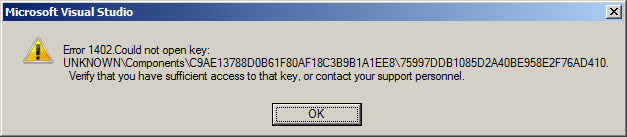
When installing or un-installing Microsoft Windows component technologies on Windows Vista/Seven/Win2K8-Server (or newer) you may encounter a message box similar to "Error 1402. Could not open key: UNKNOWN\Components\C9AE13788D0B61F80AF18C3B9B1A1EE8\...",
This long number is not an "address" as many believe but rather a registry parent container key name (as a GUID) and its child name (as a GUID). The last "\" character separates the two parent/child GUIDs.
This is not related to Okino software, but rather to components which are usually provided by Microsoft Corp. The following tutorial will outline our own personal experiences at Okino Computer Graphics of dealing with this problem. We have seen this problem posted in many forums but the simple solution we outline below which has not been properly documented as we have done so here.
 A More All-Encompassing Solution A More All-Encompassing Solution |
The above solution fixes the permissions on one registry key at a time. You will most likely find it to be a very tedious process because you will have to run your installer or un-installer multiple times, each time discovering another key which has incorrect permissions.
Another alternative solution is to "fix" all the keys at once. To do this, follow the same process as above except you should change the permissions on only one key, the one named "Components", which is accessed in the registry via this path: HKEY_LOCAL_MACHINE\SOFTWARE\Microsoft\Windows\CurrentVersion\Installer\UserData\S-1-5-18\Components. The 'S-1-5-18' key may be different on your computer.
By fixing this one key, the new permissions will be propagated to all children keys throughout this portion of the registry. As we did ourselves, please backup your machine and/or registry before doing this global operation. This one-key fix worked for us.
| Windows XP: How to fix 'Error 1402. Could not open key...' |
The following text is the general solution posted throughout the Internet.
The error indicates that you do not have sufficient permissions to update the system registry. Even if you are logged in as a system administrator, you may encounter this error if the system has been upgraded from a previous version of Windows.
The action below requires updating the system registry.
It is strongly recommended that you completely back-up your computer or at least the registry before taking this action.
- Select "Start", "Run", and type "RegEdt32". Click OK.
- Select HKEY_LOCAL_MACHINE
- In the menu, select "Edit", "Permissions". A dialog will come up.
- Check "Allow" for "Read" and for "Full Control", then click OK
- Expand HKEY_LOCAL_MACHINE and repeat steps 3, 4 for the keys "Software" and "System"
- Expand the "Software" key, and repeat steps 3, 4 for "Classes"
- Expand the "Classes" key, and repeat steps 3, 4 for "Installer"
- If you have made any changes in steps 1 through 7, skip to step 10. If you did not make any changes, continue with step 9.
- Open the "Classes" key, and click on "Installer" . In the menu, click "Security", "Permissions." Click the button marked "Advanced." Check "Reset Permissions on all child objects.", then click OK
- Close the registry editor
- Reboot the computer
r


No comments:
Post a Comment